Skip to content
View in the app

A better way to browse. Learn more.

Ford XR6 Turbo.com

A full-screen app on your home screen with push notifications, badges and more.

To install this app on iOS and iPadOS
  1. Tap the Share icon in Safari
  2. Scroll the menu and tap Add to Home Screen.
  3. Tap Add in the top-right corner.
To install this app on Android
  1. Tap the 3-dot menu (⋮) in the top-right corner of the browser.
  2. Tap Add to Home screen or Install app.
  3. Confirm by tapping Install.

Turbo Oil Supply Screen (Filter) Cleaning: How-To
Featured Replies

#471

On the turbo banjo or the the block supply banjo end ?


Is the restrictor in the block supply banjo in the Earl's kit ?

  • Replies 475
  • Views 125.4k
  • Created
  • Last Reply

Top Posters In This Topic

Most Popular Posts

Posted Images

#472

There is a very small filter in the block end  banjo fitting that will need to be removed and you need a small pair of opening cir clip plyers the new kit bolts back on without the small filter the filter is in the bolt not the  banjo 


The new filter in the kit restricts the flow enough

#473

Yes, I have already removed the OEM filter which is 30mm long on an FG and also removed the OEM metal supply line and installed an Earls's filter supply line but I was not aware of this restrictor that has been mentioned. 


I never found one when I removed / installed the lines and fittings so I was asking where this restrictor is supposed to be located  🤔


I have seen oil line kits that have a small orifice opening on the 90 deg turbo end fitting but the Earl's kit that I have did not have it.

Edited by O Trader

#474

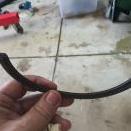
restrictor.


W8Ygx.jpg


SxPMh.jpg

#475

Awesome. Thanks for the clarification. Much appreciated Arronm.

  • 9 months later...
#476

Took mine out today, turbo is a lot quieter and runs better.

Create an account or sign in to comment

Recently Browsing 0

  • No registered users viewing this page.

Account

Navigation

Search

Search

Configure browser push notifications

Chrome (Android)
  1. Tap the lock icon next to the address bar.
  2. Tap Permissions → Notifications.
  3. Adjust your preference.
Chrome (Desktop)
  1. Click the padlock icon in the address bar.
  2. Select Site settings.
  3. Find Notifications and adjust your preference.