Skip to content
View in the app

A better way to browse. Learn more.

Ford XR6 Turbo.com

A full-screen app on your home screen with push notifications, badges and more.

To install this app on iOS and iPadOS
  1. Tap the Share icon in Safari
  2. Scroll the menu and tap Add to Home Screen.
  3. Tap Add in the top-right corner.
To install this app on Android
  1. Tap the 3-dot menu (⋮) in the top-right corner of the browser.
  2. Tap Add to Home screen or Install app.
  3. Confirm by tapping Install.

Bf Typhoon Wing On A Ba & Phantom Paint Code
Featured Replies

#1

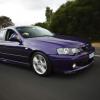
Hi guys looking to get a Typhoon Wing for the T, have come across a BF one and just wondering if anyone knows whether it will fit on a BA or not. Also does anybody know the paint code for Phantom? I have checked in the other thread where the paint codes are listed but (unless im blind) could not see Phantom.

Cheers

Brad

#2

it will fit, but you will need to drill more holes I think, and I dont have a paint code handy, but will check for you tomorrow if nobody beats me to it...

#3
  • Author

Thanks mate yeah the phoon wing has the middle support but that's all good I have that sorted. Let me know about the colour code.

Cheers

Brad

#4

The wing is the same as the T it just has longer legs so it sits higher.

#5
  • Author

Yeah I know it's higher I was referring more to the width of the outer supports if they line up with the holes on the Ba

#6

geez I'm slack, forgot to check that colour code for you, been pretty busy, have a look on your build sticker, it should be on there if you have the car handy...

#7

dont buy one

get a force 6 lip instead :3gears:

#8

Phantom Paint Code is P3. Be aware though that Ford used at least 2 different batches of this colour that I am aware of and they are very slightly different.

#9
  • Author

Thanks mate. I assume that any place that knows what they're doing will know how to determine which one is on the car?

Brad

Create an account or sign in to comment

Recently Browsing 0

  • No registered users viewing this page.

Account

Navigation

Search

Search

Configure browser push notifications

Chrome (Android)
  1. Tap the lock icon next to the address bar.
  2. Tap Permissions → Notifications.
  3. Adjust your preference.
Chrome (Desktop)
  1. Click the padlock icon in the address bar.
  2. Select Site settings.
  3. Find Notifications and adjust your preference.